

Here is a summarized explanation of the commands you need to work with crontab in Ubuntu:
crontab -e: This command allows you to edit your crontab file.crontab -l: Use this command to list the content of your crontab file.crontab -r: If you want to remove all entries from your crontab file, you can use this command.
Please note that these commands are specific to Ubuntu and may vary slightly depending on the Linux distribution you are using.
IN THIS PAGE
- What is Crontab
- How to List and Edit crontab
- How to add & run a job in crontab
- How to Backup and Replace crontab
- What is the Timezone in Crontab
What is Crontab
Crontab in Ubuntu automates shell scripts. Here is my earlier post on this topic. In Ubuntu or any other Linux operating system, the crontab allows for edits only to root users. The sudo users usually are root users.
How to List and Edit crontab
Here are four ridiculously useful commands that you can use while working with Crontab. These are list, edit, backup, and replace commands.
List command
You can view jobs with the list command.
$sudo crontab -l # browseEdit command
You can edit the Crontab with the edit command.
$sudo crontab -e #editHow to add & run a job in crontab
To show how to add a cron job, I have added a simple job, which creates a directory at the specified time.
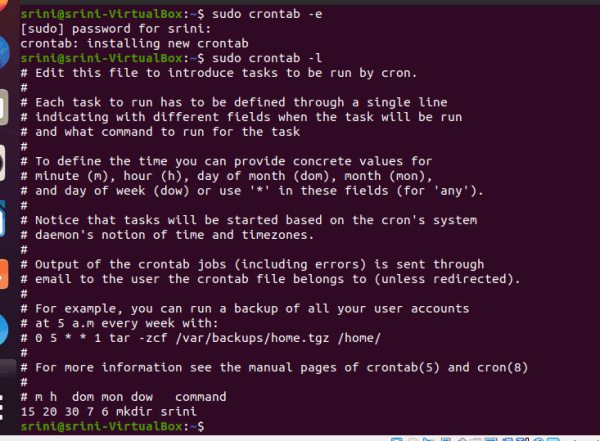
The job runs for 15 minutes, at 20 hours, on 30th, July (7th ), and Saturday, The execute command is mkdir srini. A directory of srini is created after running this crontab command.
How to Backup and Replace crontab
Backup command
Here is a command you can use to take the backup of Crontab.
Replace command
Taking backup is the best practice before making changes to the Crontab. The following command replaces the current set of jobs with the jobs in the file crontab.new:
$ crontab -r > crontab.newWhat is the Timezone in Crontab
Please note that Crontab triggers scripts according to your operating system’s Timezone.
Related







 Srinimf
You must be logged in to post a comment.