

Here are the commands to make IAM profiles available in Terraform. Terraform lets you code your infrastructure. Additionally, you can also use Python for infrastructure automation. Below are the essential commands and workflows to effectively manage IAM profiles in Terraform while automating your infrastructure using AWS.
Overview of Terraform and AWS Interaction
Terraform is an invaluable tool for infrastructure as code (IaC). It enables developers to define and manage infrastructure through configuration files. When working with AWS, Terraform interacts via API calls, facilitating various infrastructure operations smoothly.
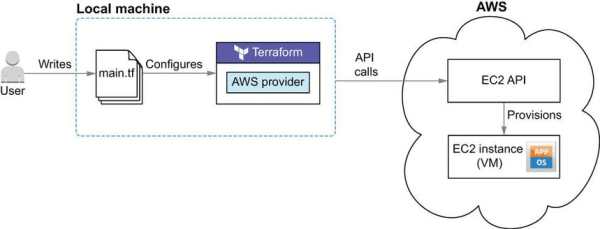
Step-by-Step Workflow for Terraform API Calls to AWS
To set up your infrastructure with Terraform, follow this streamlined procedure:
- Write your Terraform configuration files, defining your infrastructure requirements.
- Configure the AWS provider by specifying your credentials and region.
- Initialize your Terraform project with the command:
terraform init - Deploy your desired resources, such as EC2 instances, using:
terraform apply - Clean up and remove resources when no longer needed with:
terraform destroy
Adding a User to AWS IAM Console
One effective way to add a user profile in AWS is via the AWS Management Console. Another way is the CLI using Terraform integration.
Using the IAM Management Console
- Sign in to the IAM console.
- Click on “Add User.”
- Check the box for AWS Management Console access and set a custom password.
- On the Permissions page, you can attach the
AdministratorAccesspolicy directly. Alternatively, add the user to an existing group that has this policy.
It’s also advisable to create access keys under the Security Credentials tab. These keys allow authentication against AWS service APIs. They can be set as environment variables (AWS_ACCESS_KEY_ID and AWS_SECRET_ACCESS_KEY). Alternatively, they can be placed in an AWS configuration file.
For more information, click to read how to install AWS CLI.
Updating Configuration Files for AWS
To configure your AWS credentials via the CLI, use the following example code. Make sure to replace the access keys and region with your actual values:
$ aws configure --profile tf-user1AWS Access Key ID [None]: AKIAIOSFODNN7EXAMPLEAWS Secret Access Key [None]: wJalrXUtnFEMI/K7MDENG/bPxRfiCYEXAMPLEKEYDefault region name [None]: us-west-2Default output format [None]: json
The credentials will be stored in your configuration file as follows:
[tf-user1]output = jsonregion = us-west-2aws_access_key_id = AKIAIOSFODNN7EXAMPLEaws_secret_access_key = wJalrXUtnFEMI/K7MDENG/bPxRfiCYEXAMPLEKEY
Making the AWS Profile Available in Terraform
After setting up your AWS profile and credentials, you can easily incorporate them into your Terraform configuration. Declare the AWS provider in your configuration file as illustrated below:
provider "aws" { profile = "tf-user1"}
This configuration enables your newly created IAM user to efficiently access and manage the designated AWS resources.
Additional Resources
For additional reading and learning, consider exploring these resources:






 Srinimf