

Here’s a simple FastAPI application that demonstrates how to create basic API endpoints. This example includes an endpoint to accept a list of binary numbers, check if each is divisible by 5, and return the binary numbers that meet the criteria.
Before proceeding install these two in the VisualStudioCode Terminal
- pip install FastAPI
- pip install uvicorn

FastAPI Application
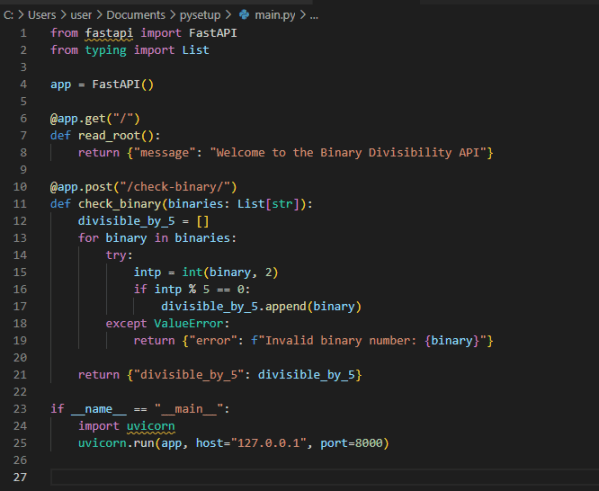
We have saved the below app code in main.py.
from fastapi import FastAPI
from typing import List

app = FastAPI()

@app.get("/")
def read_root():
    return {"message": "Welcome to the Binary Divisibility API"}

@app.post("/check-binary/")
def check_binary(binaries: List[str]):
    divisible_by_5 = []
    for binary in binaries:
        try:
            intp = int(binary, 2)
            if intp % 5 == 0:
                divisible_by_5.append(binary)
        except ValueError:
            return {"error": f"Invalid binary number: {binary}"}

    return {"divisible_by_5": divisible_by_5}

if __name__ == "__main__":
    import uvicorn
    uvicorn.run(app, host="127.0.0.1", port=8000)
Running the Application
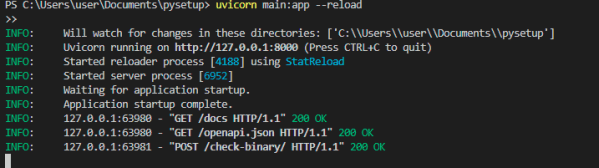
In the VisualStudioCode terminal run the UVICORN server
Run the application using Uvicorn
uvicorn main:app --reload
Swagger API
in the chrome issue the below command:
http://127.0.0.1:8000/docs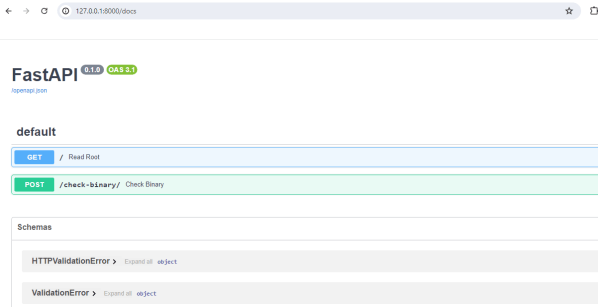
Access Swagger UI:
- Open your web browser and go to
http://127.0.0.1:8000/docs.
Locate the Endpoint:
- Find the
POST /check-binary/endpoint in the list of available endpoints. This endpoint is listed under the section that matches your FastAPI application.
Click on the Endpoint:
- Click on the
POST /check-binary/endpoint to expand it. This will reveal more details about the endpoint, including a description, parameters, and a “Try it out” button.
Click “Try it out”:
- Click the “Try it out” button to enable input fields where you can pass your input data.
Enter Input Data:
- In the “Request body” section, you’ll see a text box where you can enter your JSON input. For your use case, you would enter a list of binary strings like this:
[
  "1010",
  "1101",
  "10000",
  "1111"
]
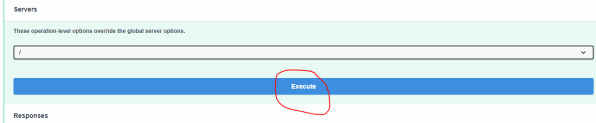
Execute the Request:
- After entering the input, click the “Execute” button. Swagger UI will request the provided data to your FastAPI endpoint.
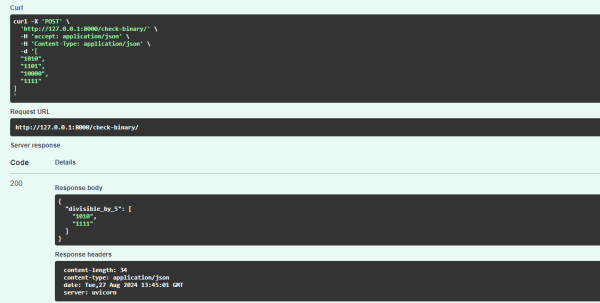
View the Response:
- Once the request is executed, Swagger UI will display the response from your FastAPI server. You’ll see the response body, status code, and other details.
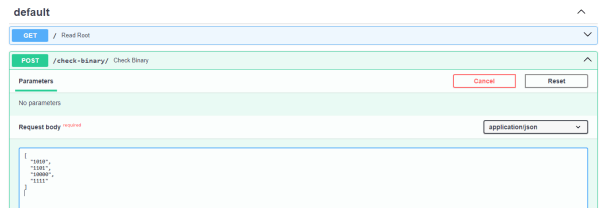
Click on the Execute command
The response you can see like this:
Conclusion
In this article, we explored a simple FastAPI application that demonstrates how to create basic API endpoints. We discussed how to install FastAPI and Uvicorn. Then examine the code for the FastAPI application, which includes an endpoint to check if a list of binary numbers is divisible by 5.
We also examined how to run the application using Uvicorn in the VisualStudioCode terminal and how to access the Swagger UI to interact with the POST /check-binary/ endpoint. We walked through entering input data, executing the request, and viewing the response in Swagger UI.
Using these steps, you can understand the fundamentals of creating and testing API endpoints with FastAPI and accessing the Swagger UI to interact with your API.







 Srinimf
You must be logged in to post a comment.