

Here’s a guide to create a new task in Windows Task Scheduler and add a BAT file. This guide will show you how to upload data from a flat file to an Oracle table. The main focus is on adding an SQL Loader script to the BAT file.
Table of contents
- Create a Task in Windows task Scheduler
- Creating a BAT file
- How to Load Data from Flat file to Oracle Table (SQLLDR)
Create a Task in Windows task Scheduler
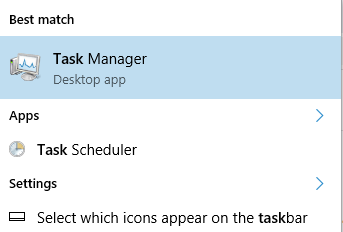
Search for a Task scheduler in windows search.
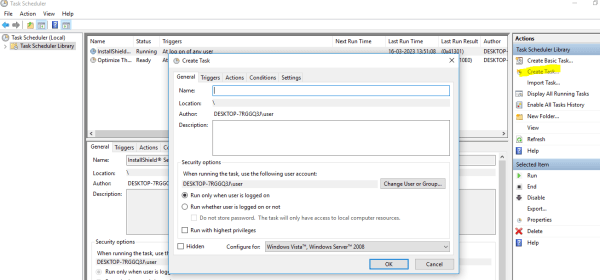
Click on create a New task
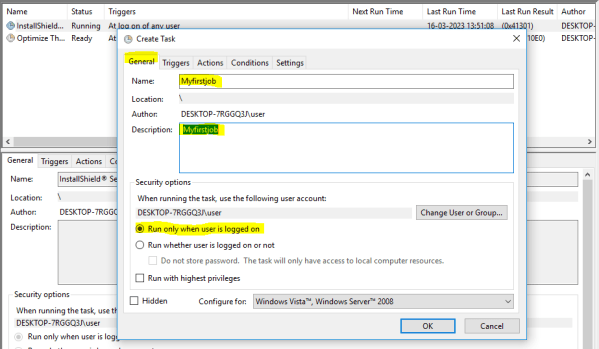
Add details for the General tab
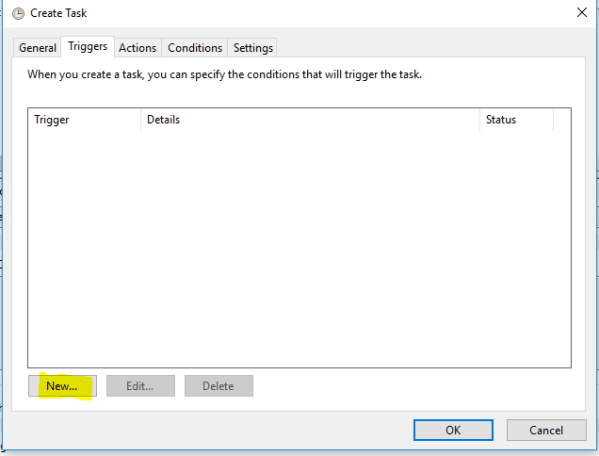
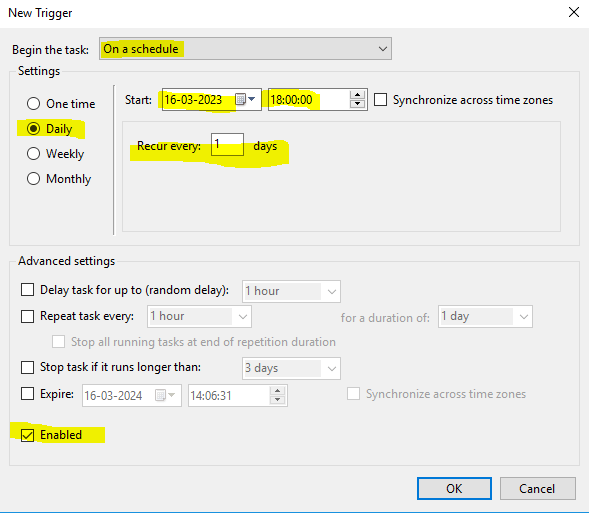
Add trigger details: Click on the New tab
Enter the Date and Time of frequency to run the scheduled job.
In the actions tab, you need to attach the BAT file.
Here’s my previous post on running SQL Loader script at Command Prompt. Add the same to the BAT file. So you can automate the task in the Windows task Scheduler.
Creating a BAT file
Go to any drive you wish. For example, in the D:/ drive, open notepad, and add contents as below:
Save it as “Myscript.bat”:
"C:\Users\user\AppData\Roaming\Microsoft\Windows\Start Menu\Programs\System Tools\Command Prompt.lnk" /c "SQLLDR database-name/password@portname control=D:/p.ctl, skip=1"The first piece of code: “C:\Users\user\AppData\Roaming\Microsoft\Windows\Start Menu\Programs\System Tools\Command Prompt.lnk” tells open the CMD.
The second piece /c tells CMD to open, execute and close it. The third piece is the actual script to run.

Just add the script to the Actions tab.
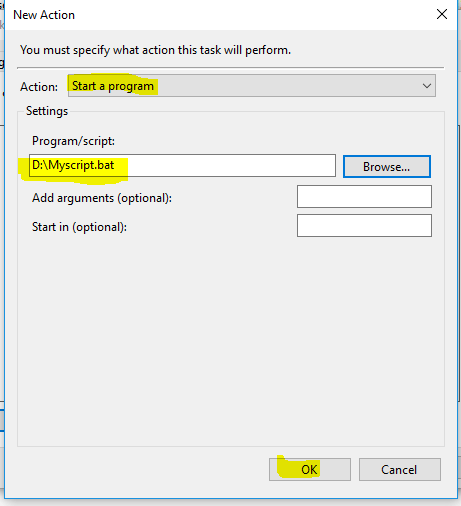
That’s all. Your scheduled job will execute as per the time you choose.
References







 Srinimf
You must be logged in to post a comment.